Jupyter Notebook in 2026: A Reproducible Beginner's Workflow
Editorial update — September 13, 2026: This revision replaces the old installation advice with a current JupyterLab workflow, explains kernels and environments, and adds a reproducible CSV example instead of treating a notebook as a disposable scratchpad.
Update history: September 13, 2026 — first major editorial revision with source checks, practical guidance, and new visuals. Original publication: February 24, 2025. Future revisions should add a new dated entry above this one.
Jupyter is most useful when a notebook records the question, the code, the output, and the explanation in one reviewable document. The beginner mistake is to install packages into one Python interpreter and run the notebook with another kernel. The result looks like a data problem even though it is an environment problem.
Key Takeaways
- JupyterLab is the current next-generation interface; classic Notebook remains available for a simpler view.
- Create an isolated Python environment, install JupyterLab into it, and register the matching kernel before loading data.
- A reproducible notebook states its inputs, package versions, random seeds, and expected output.
- Use Try Jupyter for exploration, but move repeatable work to a repository with an environment file and a small test.
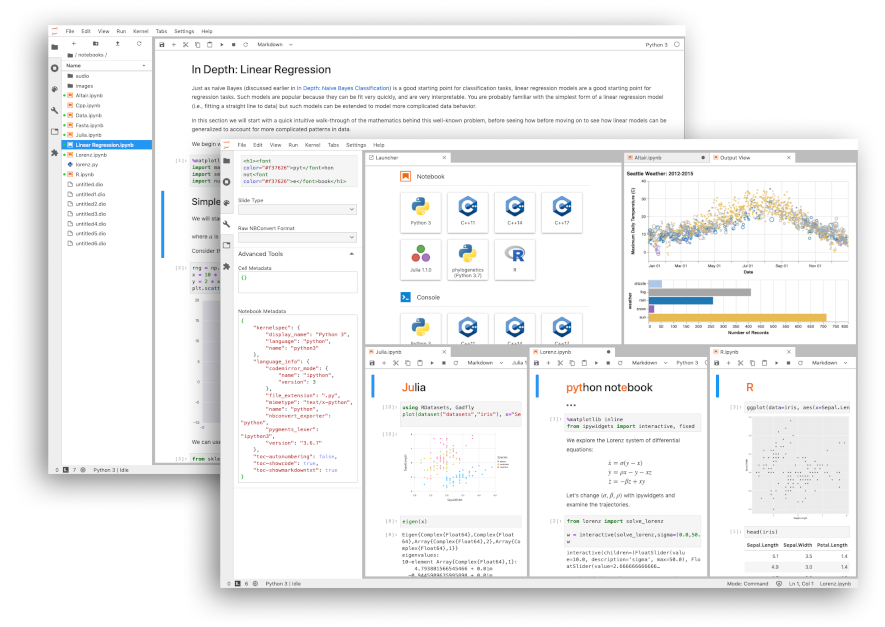
JupyterLab, Notebook, and Kernels
JupyterLab is a browser-based workspace with notebooks, terminals, text editors, and file navigation. A notebook is the document format: cells contain code, Markdown, raw text, and outputs. The kernel is the running process that executes those cells. This separation is why the browser can stay open while you restart Python, switch environments, or connect to a remote server.
| Layer | What it controls | Beginner check |
|---|---|---|
| Interface | Tabs, files, terminals, notebooks | Open JupyterLab and confirm the file browser sees your project |
| Notebook | Ordered cells and saved outputs | Restart and run all to test order dependence |
| Kernel | Python process and installed packages | Run `import sys; print(sys.executable)` |
| Environment | Python version and dependencies | Export a requirements or environment file |
A Clean Installation
The official installation page supports a straightforward pip path. A virtual environment keeps this project separate from other Python tools:
python -m venv .venv
# Windows PowerShell
.\.venv\Scripts\Activate.ps1
python -m pip install --upgrade pip
pip install jupyterlab pandas matplotlib seaborn
jupyter lab
Conda or mamba is a sensible alternative when native scientific packages are difficult to compile. Whichever tool you choose, write down the command and the Python version. “It works on my machine” usually means the environment was never recorded.

First Notebook: Data, Evidence, and Output
Create a notebook named sales_check.ipynb. Start with a Markdown cell describing the source file, the question, and the date of the analysis. Then load data and make assumptions visible:
from pathlib import Path
import pandas as pd
import seaborn as sns
import matplotlib.pyplot as plt

path = Path("data/sales.csv")
df = pd.read_csv(path, parse_dates=["order_date"])
print(df.shape)
print(df.isna().sum())

monthly = (df.assign(month=df["order_date"].dt.to_period("M"))
             .groupby("month", as_index=False)["revenue"].sum())
sns.lineplot(data=monthly, x="month", y="revenue")
plt.xticks(rotation=45)
plt.show()
The important part is not the chart style. It is the visible check of row count, missing values, date parsing, and the exact aggregation. A reader can now challenge the calculation instead of trusting a polished image.
Reproducibility Checklist
- Run Restart Kernel and Run All before sharing.
- Use relative paths and include a small sample or download instruction for the input.
- Pin important packages with
pip freeze > requirements.txtor an environment file. - Set random seeds for sampling and state when results are approximate.
- Remove tokens, passwords, customer data, and hidden outputs before committing.

Where Beginners Get Stuck
If a module is missing, compare the kernel executable with the interpreter that installed the package. If cells work only after running them out of order, restart and run all. If a notebook is slow, profile the expensive cell and move stable transformations into a script or a pipeline. A notebook is an excellent explanation and exploration surface; it is not automatically a production scheduler.
Editorial Verdict
Start with JupyterLab in an isolated environment, then make the notebook auditable. The quality signal is a reader reproducing the result from a clean kernel, not the number of charts on the page.
FAQ
Should I install classic Notebook or JupyterLab?
Use JupyterLab for a full workspace. Install classic Notebook when you want the simpler interface or must follow an older course.
Why does the notebook say a package is missing after pip install?
The notebook kernel may point to another Python environment. Print `sys.executable`, install into that interpreter, or register the correct kernel.
Can I use Jupyter without installing Python?
Yes. Try Jupyter runs browser demonstrations, but local projects still need a managed environment for data access and repeatability.

